My iPhone has started lagging a lot in the last few days—apps take forever to open, typing freezes, and even swiping between screens feels choppy. I haven’t installed many new apps, but I did update iOS recently. I need help figuring out what might be causing this slowdown and what I can do to fix the lag without having to reset or replace my phone.
This happens a lot right after an iOS update, so you are not going crazy.
Here is what I would check and do, in order:
-
Check storage
- Go to Settings > General > iPhone Storage.
- If you are under 5–10 GB free, iOS slows down.
- Delete big stuff first. Large videos, old screenshots, unused apps.
- Offload apps you do not use often instead of full delete if you want.
-
Let iOS finish background tasks
- After an update, iPhone runs indexing for Spotlight, Photos analysis, etc.
- While it runs, the phone feels laggy, battery gets hot, and apps stutter.
- Plug the phone in, lock it, and leave it on Wi‑Fi for an hour or two.
- Lag often improves after a day or two once indexing finishes.
-
Restart the phone
- Full shutdown, not just lock.
- Settings > General > Shut Down. Wait 20–30 seconds. Turn it back on.
- This clears temp junk and stuck processes.
- Do this after big updates or if apps freeze a lot.
-
Check battery health and performance management
- Settings > Battery > Battery Health & Charging.
- If Maximum Capacity is under about 85%, iOS might throttle performance.
- If you see “Performance management is applied”, tap to disable it and test.
- If the phone then crashes randomly, turn it back on. That means the battery struggles.
-
Reduce background stuff
- Settings > General > Background App Refresh > turn it off for apps you do not need.
- Settings > Privacy & Security > Location Services > change junky apps to “While Using” or “Never”.
- Disable unneeded widgets and live activities.
- These small things stack up and impact lag.
-
Clear Safari and keyboard junk
- Safari: Settings > Safari > Clear History and Website Data.
- Keyboard: Settings > General > Transfer or Reset iPhone > Reset > Reset Keyboard Dictionary.
- This helps if typing keeps freezing or lagging in multiple apps.
-
Check for stuck apps
- Double press Home or swipe up, then flick problematic apps away.
- If one specific app always hangs, uninstall then reinstall it.
- Some apps run badly on new iOS builds until they get updates.
-
Use a cleaner to tidy storage and media
- If you have thousands of photos, videos, and duplicates, the Photos app slows down.
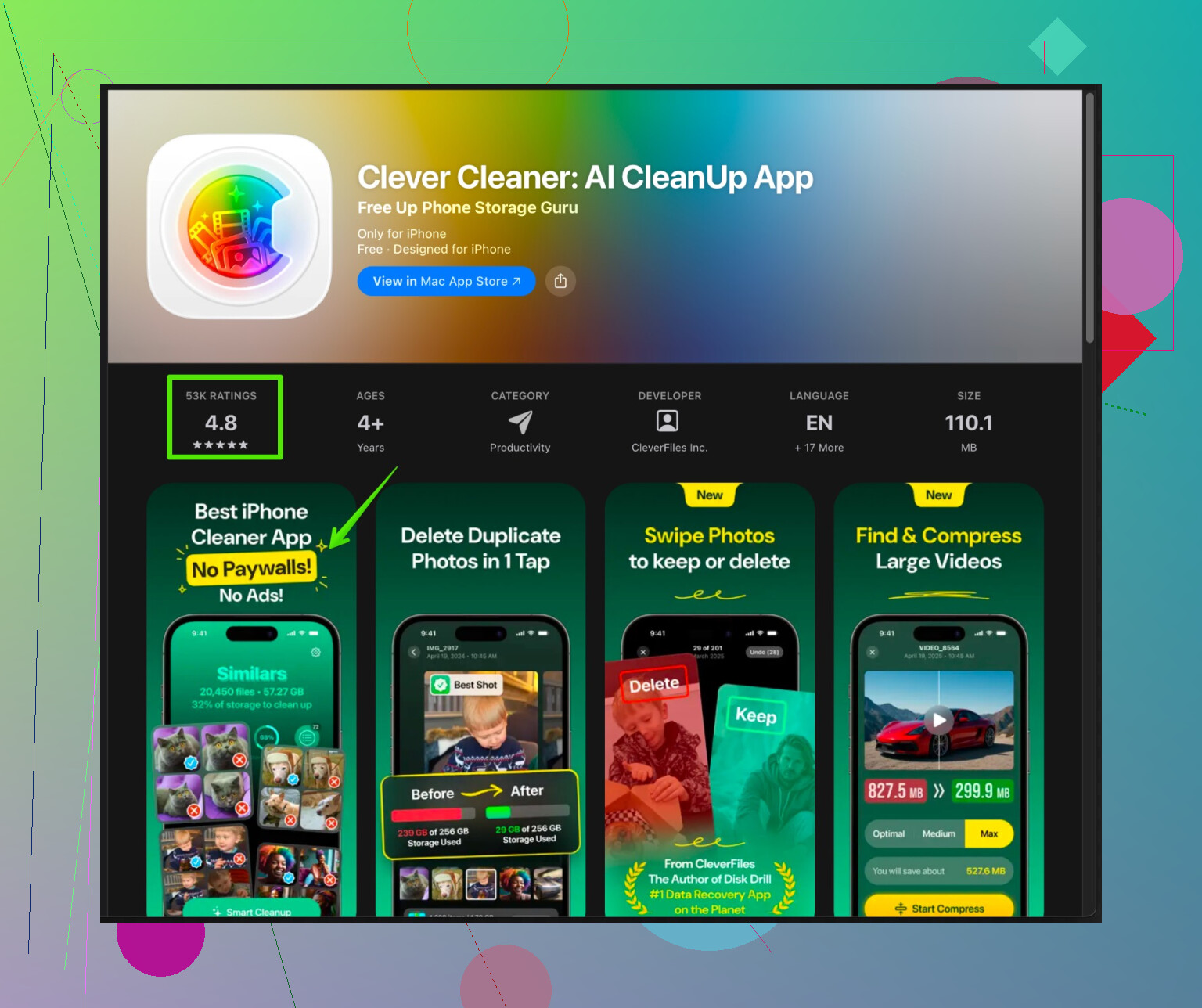
- A tool such as the Clever Cleaner App for iPhone helps remove duplicate photos, blurred shots, large files, and useless screenshots.
- It also groups similar media so you clear space faster, which helps iOS breathe.
- You can check it here: speed up your iPhone with Clever Cleaner.
- Extra free storage often reduces lag a lot.
-
Turn off fancy effects
- Settings > Accessibility > Motion > Reduce Motion > On.
- Settings > Accessibility > Display & Text Size > Reduce Transparency > On.
- This reduces animation load, and older or lower storage models feel snappier.
-
Last resort steps
- Update to the latest minor iOS version, since Apple fixes lag and bugs quickly.
- If things are still awful, backup with iCloud or Finder, then do a Reset All Settings.
- If it still behaves like trash, a full erase and restore from backup is the nuclear fix.
If you share your iPhone model, storage used vs total, and iOS version, people here can narrow down if this is normal post‑update slowness or a deeper issue like a dying battery or storage wear.
17 Likes
You’re not crazy, and you’re definitely not alone. iOS updates have been turning snappy iPhones into potato mode since forever.
@himmelsjager already covered the usual suspects like storage, indexing, battery health, etc., so I won’t rehash all that. I’ll hit some other angles that trip people up after an update:
1. Check for “fake smoothness killers” in Settings
Apple likes to flip stuff back on after major updates.
-
Go to Settings > Accessibility > Touch > Haptic Touch
Try setting Haptic Touch to Fast. The “Sloooow” press can make the phone feel laggy even when it’s not. -
Go to Settings > Keyboard
Turn off for testing:- Predictive
- Smart Punctuation
- Check Spelling
If typing suddenly feels like it’s freezing, the updated keyboard system sometimes chokes on older devices or big text dictionaries.
2. Check iCloud sync overload
After an update, your phone might be:
- Re-syncing iCloud Photos
- Uploading a ton of messages to iCloud
- Re-downloading app data or iCloud Drive stuff
Signs it’s happening:
- Photos says “Syncing…” or “Analyzing…”
- iCloud Drive / Files are spinning constantly
- Settings shows a lot of iCloud Backup / Photos usage under Apple ID > iCloud
You can temporarily ease the load:
- Turn off iCloud Photos for an hour or two, then turn it back on later.
- In Settings > Messages > iCloud, pause Messages in iCloud if it is chewing CPU.
I actually disagree slightly with letting “everything just finish” if your phone is almost unusable. If the device is older or nearly full, those background jobs can make it borderline unusable. Sometimes pausing them, rebooting, and letting them resume when plugged in overnight is less painful.
3. Check if widgets and lock screen junk are choking it
iOS updates love to add:
- New lock screen widgets
- New Home Screen widgets
- Live Activities / Live notifications
If your lag is worst on the Home Screen or Lock Screen:
- Long press the Home Screen, remove any fancy widgets you barely look at
- On the Lock Screen, edit it and kill off nonessential widgets
- Disable unnecessary Live Activities in each app’s notification settings
Widgets constantly refreshing in the background can absolutely make animations stutter on older or low-storage models.
4. Look at network-related lag
Some “lag” is actually the phone constantly waiting on slow network calls:
- If apps hang on launch (esp. social, email, browsers), try Airplane Mode for a minute and open them.
- If they’re suddenly smooth offline, your issue may be:
- iCloud, App Store, or network services temporarily messed up
- Wi‑Fi having DNS issues
- If they’re suddenly smooth offline, your issue may be:
- Go to Settings > Wi‑Fi > [your network] > Forget This Network, then reconnect
- Try another Wi‑Fi network or temporarily test on cellular only
After some updates, the phone plays badly with certain routers until you recreate the connection.
5. Focus on where it lags
This really helps narrow it down:
-
Only while typing?
Probably keyboard / dictionary / autocorrect / text replacement or a specific app like Messages or WhatsApp being trash after the update. -
Only when opening certain apps?
Those apps may not be optimized for this iOS version yet. Try:- Update the app in App Store
- If still bad, delete and reinstall
- If one app is always freezing the whole system, that’s a big hint
-
System-wide (swiping home, switching apps, Control Center)?
More likely:- Storage wear or near-full storage
- Background indexing not done
- Performance throttling from battery or thermal issues
If you share your model and remaining storage (like “64 GB total, 3 GB free”) you’ll probably get more targeted guesses.
6. Heat and throttling
Feel the phone when it’s lagging:
- If it’s running hot to the touch, the CPU might be slipping into thermal throttling to avoid damage.
That makes animations feel chunky.
What you can try:
- Remove any thick case temporarily
- Avoid wireless charging for a bit
- Don’t play heavy games or use navigation while the phone is doing all its post‑update background junk
- Let it cool, then test again
7. System log kind of troubleshooting (bit nerdy but useful)
If you want to go more “techie”:
- Plug your iPhone into a Mac
- Open Console app on the Mac
- Select your iPhone on the left, watch real-time logs while you do stuff
If you see the same app or process spamming errors non‑stop (like some cloud storage app, antivirus-style app, mail account, or VPN), that thing could be hammering the system.
If you have a VPN app installed, especially some free “secure” VPN, try disabling it entirely and see if performance comes back. VPN profiles can really mess with system responsiveness.
8. Storage cleanup with an actual plan
Even though @himmelsjager already mentioned clearing storage, I’ll add this: don’t just randomly delete photos and hope for the best.
A lot of lag after updates is from:
- Massive photo libraries
- Tons of screenshots and short clips
- WhatsApp/Telegram media hoarding in the background
If you are the “10k+ photos, never delete anything” type, that alone can slow Photos, search, and sometimes even scrolling.
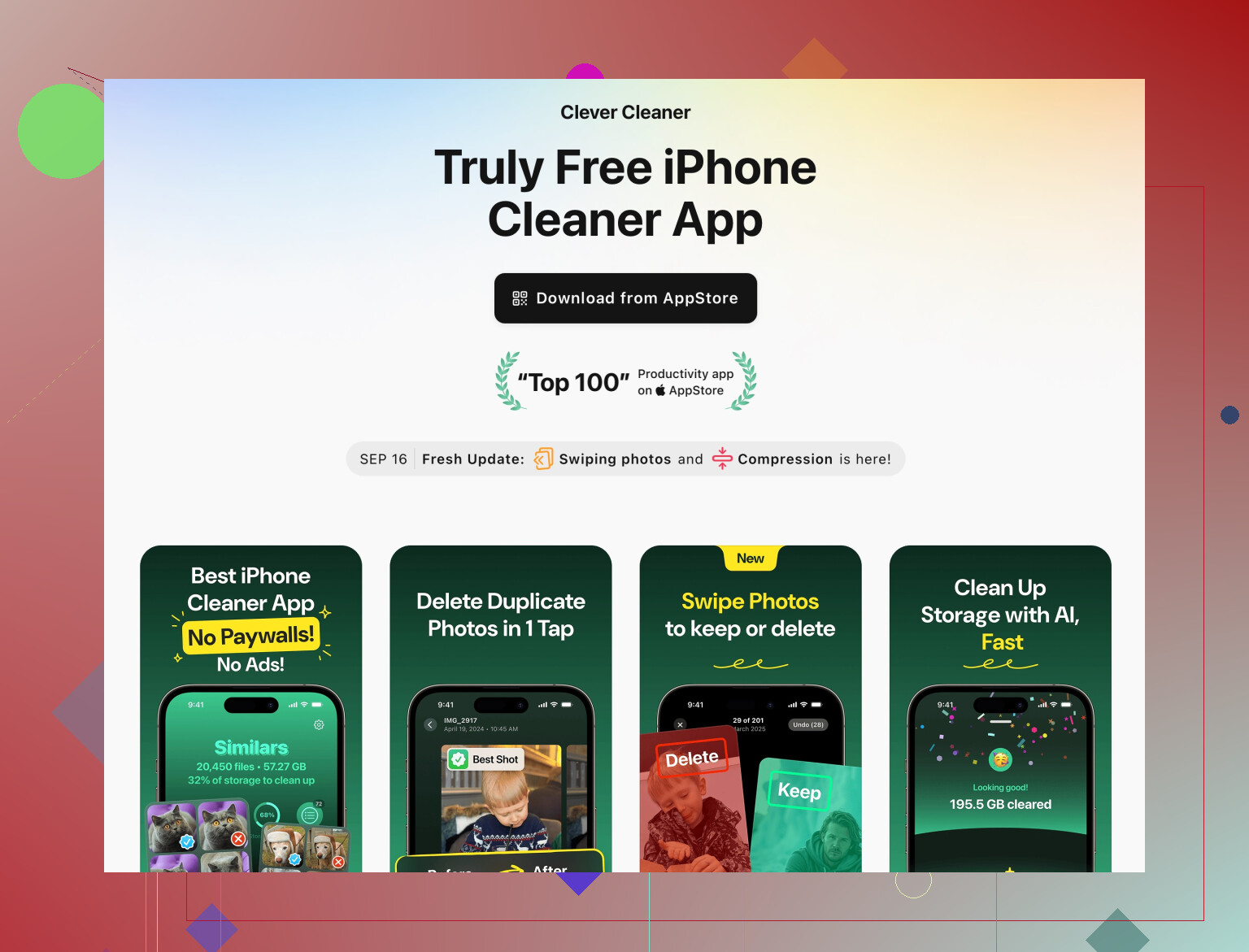
This is one place where a dedicated cleaner can actually be helpful, as long as it is not some shady battery-saver nonsense. For big libraries, something like the Clever Cleaner App can speed up the cleanup:
- Finds duplicate and similar photos
- Groups blurry shots and screenshots
- Helps you trash large useless media fast
If you want to check it, here’s a more readable link to their page:
clean up iPhone photos and storage with Clever Cleaner
Freeing serious space (like going from 1–2 GB free to 15–20 GB free) often makes the phone feel like a different device.
9. When to suspect the update itself is just bad
Sometimes Apple simply ships a buggy point release and your model is the unlucky one.
Signs it might be that:
- Other people with the same model + iOS version are complaining a lot
- Lag started literally right after updating, not gradually
- You already have plenty of free storage and okay battery health
In that case:
- Make sure you are on the latest minor version (like 17.1.2 instead of 17.1)
- If a new minor update just dropped and everything went to hell, sometimes the only real fix is:
- Backup
- Erase all content and settings
- Set up as new iPhone and test before restoring your backup
If it runs fine as a new device but dies again after restoring your old backup, then something in your old config / apps is causing the slowdown.
If you can post your iPhone model, storage situation, and exact iOS version, people here can tell you if it sounds like “normal post-update chaos” or “your phone is on its retirement tour and Apple just pushed it over the edge.”
You already got solid breakdowns from @codecrafter and @himmelsjager on the usual storage / indexing / battery angles, so I’ll pivot to the “deeper cuts” that often explain why an iPhone suddenly turns into sludge right after an update.
1. Check if the update triggered an old backup problem
Sometimes the lag is not the update itself, but old junk in your user data that the new iOS version suddenly struggles with.
Try this diagnostic:
- Backup your iPhone to iCloud or a computer.
- On the same device, go to Settings > General > Transfer or Reset iPhone > Erase All Content and Settings.
- When it restarts, choose Set Up as New iPhone, skip restoring your backup, log in only with your Apple ID, install 1 or 2 key apps, then test for a few hours.
- If the phone is smooth in this “fresh” state, your hardware is fine and something in your old backup (weird profiles, very old app data, corrupted settings) is choking the system.
- If it is still laggy even completely fresh, then we are probably dealing with hardware limits (old device, storage wear, or borderline battery).
You do not have to stay wiped. This is just to figure out if restoring your full old setup is the problem.
2. Look for profiles, VPNs and security apps
This is one area where I slightly disagree with the idea that it is “almost always” normal post‑update chaos.
Go to:
- Settings > General > VPN & Device Management
If you see:
- Old VPN profiles
- Mobile device management profiles from previous jobs / schools
- “Security” or “web filter” stuff
Remove anything you do not actively use. VPNs and filtering profiles can:
- Add delay to every network request
- Cause apps to stall on launch
- Make the whole phone feel laggy because everything waits on the network
Also check for standalone VPN / “secure browsing” apps and disable them for a day to see if performance improves.
3. Calendar, mail and contact sync loops
After updates, some accounts get stuck in constant sync attempts.
Signs:
- Mail app always shows “Checking for mail” forever
- Calendar or Contacts stuck spinning
- Battery usage shows Mail or similar system processes abnormally high
Fix:
- Go to Settings > Mail > Accounts.
- Temporarily turn off problematic accounts (especially Exchange or odd IMAP providers), or delete and readd them.
- Same for Contacts and Calendars if they are using separate accounts.
A stuck sync loop can drag down the entire UI, not just that app.
4. Typing lag specifically: text replacements & third‑party keyboards
If the worst lag is when typing, especially in Messages or apps with long chat histories:
-
Text replacements
- Go to Settings > General > Keyboard > Text Replacement.
- If you have a giant list synced since forever, try deleting unused ones or temporarily turning off iCloud sync for them.
-
Third‑party keyboards
- Switch back to Apple’s default keyboard under Settings > General > Keyboard > Keyboards.
- Remove extra keyboards you do not need. Some third‑party keyboards misbehave badly after new iOS versions until they update.
-
Message history
- In Settings > Messages > Keep Messages, try switching from “Forever” to “1 Year” or “30 Days” if you have extremely old chat history and gigantic threads.
- Massive threads with thousands of media attachments can slow search, load and scrolling.
5. Photos database bloat & realistic cleanup
This overlaps with what the others said about storage, but the real issue is not just “space” but how big and messy your Photos database is.
If you have:
- Tens of thousands of photos
- Tons of near-duplicates and bursts
- Years of WhatsApp / Telegram / Viber media saved
The Photos indexing and search system can drag for days after an update.
Here is where something like the Clever Cleaner App is actually useful, not as magic speed dust, but as a focused cleanup tool:
Pros of Clever Cleaner App
- Groups similar and duplicate photos so you do not manually scroll through 20k images.
- Helps find blurry shots, screenshots, and large videos quickly, which are usually the heaviest offenders.
- Can free tens of gigabytes faster than poking through Photos and WhatsApp chats manually, which gives iOS more working room and often reduces lag.
Cons of Clever Cleaner App
- Deleting in bulk is risky if you do not carefully review; you can lose photos you actually care about.
- Any cleaner app is another thing installed, so if your storage is already critically low you should remove other junk first.
- It does not fix fundamental hardware limits: on a very old or almost worn-out device, cleanup helps but does not make it feel brand new.
Key point: use it thoughtfully. Review suggested deletions instead of just accepting everything.
6. Storage wear and the “invisible age problem”
Two devices with the same storage free space can behave very differently if one has much older, heavily written flash storage.
Clues:
- Older models with years of daily use.
- Random slowdowns even when you still have, say, 20 GB free.
- Occasional brief freezes when saving photos or screenshots.
You cannot check NAND health in iOS directly, but if:
- Battery is decent
- Storage is not full
- Fresh install is still a bit sluggish
then you might simply be hitting the physical age ceiling of the device. Updates push more features and heavier frameworks, and aging storage just cannot keep up smoothly.
7. When to stop tweaking and do one clean reset
This is where opinions differ. Some people keep toggling settings for weeks. My take:
- If after:
- Freeing a solid chunk of storage
- Letting background indexing run overnight
- Turning off obvious hogs like VPNs and weird profiles
- Updating all apps
your phone is still unbearably laggy, a single full erase and restore test is worth it:
- Backup.
- Erase all content.
- Test as new.
- If clean state is fine, restore your backup.
- If it becomes slow again right after restore, you know something in your environment is the culprit.
No need to restore and wipe over and over. One well-planned cycle tells you most of what you need.
If you can share your exact iPhone model, total / free storage, battery health percentage, and iOS version, it would be easier to say whether you are just hitting the usual “post‑update hangover” that @codecrafter and @himmelsjager described, or if the device is simply running into its hardware limits.